Your notes, your AI,
the right folder.
AI tools like Claude Code and Codex leave scripts and notes all over an Obsidian vault. Audience shows you what Obsidian hides, starts an AI in the right place with one click, and keeps track of which notes are for you and which are for the AI.
Free and open source (MIT). Desktop only: macOS and Linux, with Windows new and not yet tested. Works offline, no account, no API keys.
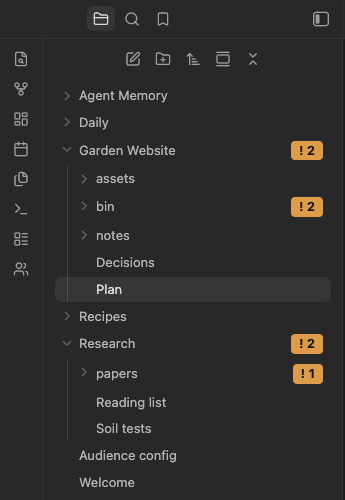
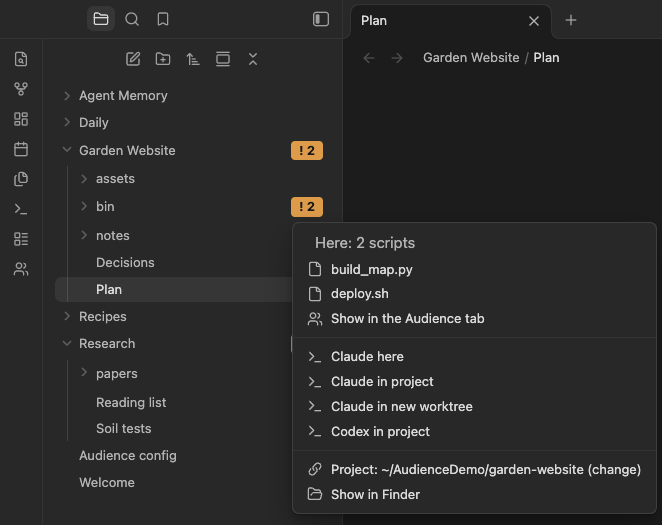
2 · Start an AI in the right place
one click, a new terminal windowEvery folder gets buttons that open a terminal and start your AI tool in one of three places:
- Here: in the vault folder itself.
- In the project: link a vault folder to the real code folder on your disk once, and the AI starts there.
- In a new worktree: a separate copy of the project on its own branch, so your main copy stays untouched. Only shown for projects kept in git.
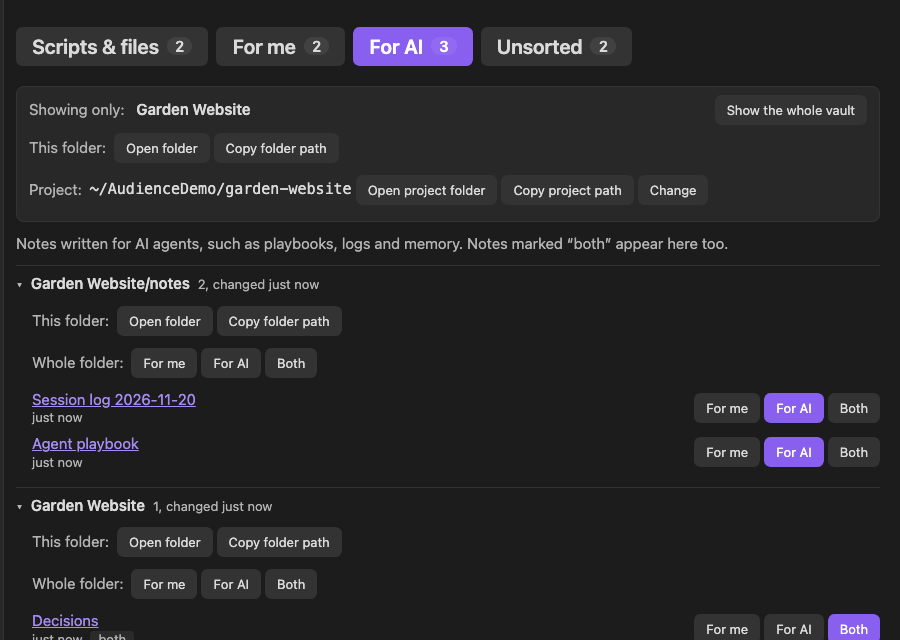
Click “Show in the Audience tab” on a badge and the list narrows to that folder. Everything else waits, greyed out, below. Open or copy the folder’s path, or the project’s, from the same place.
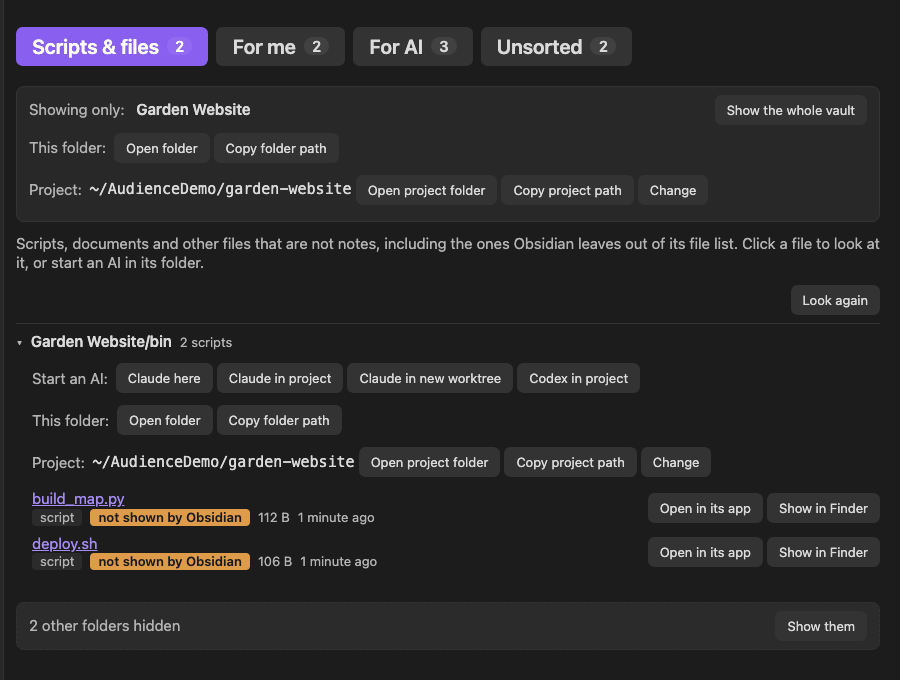
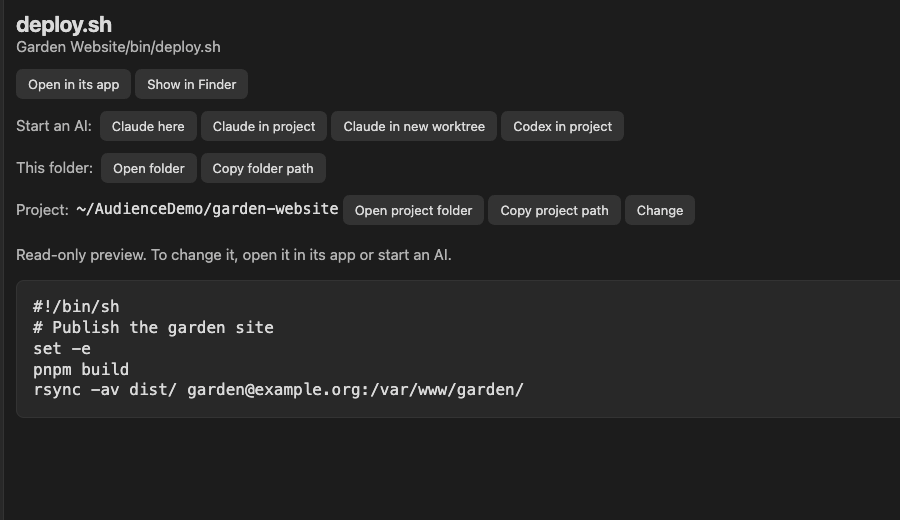
3 · Say who each note is for
one property:audience
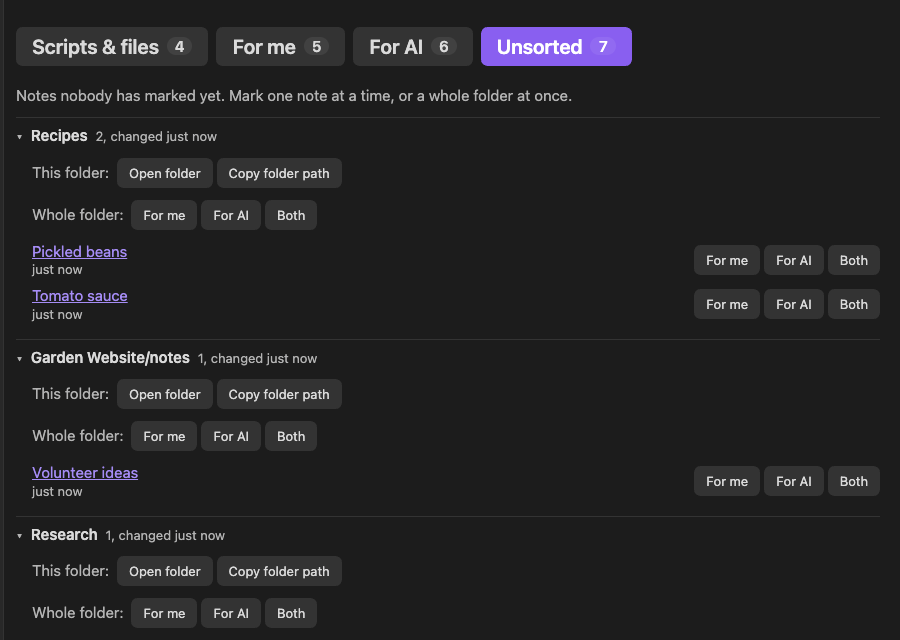
One property at the top of a note, audience: human, ai or both,
sorts it into For me, For AI or Unsorted.
Unsorted is the inbox that catches whatever an agent forgot to mark. One click marks a note, or a whole folder at once.
4 · Your terminal, your tools
no code to write
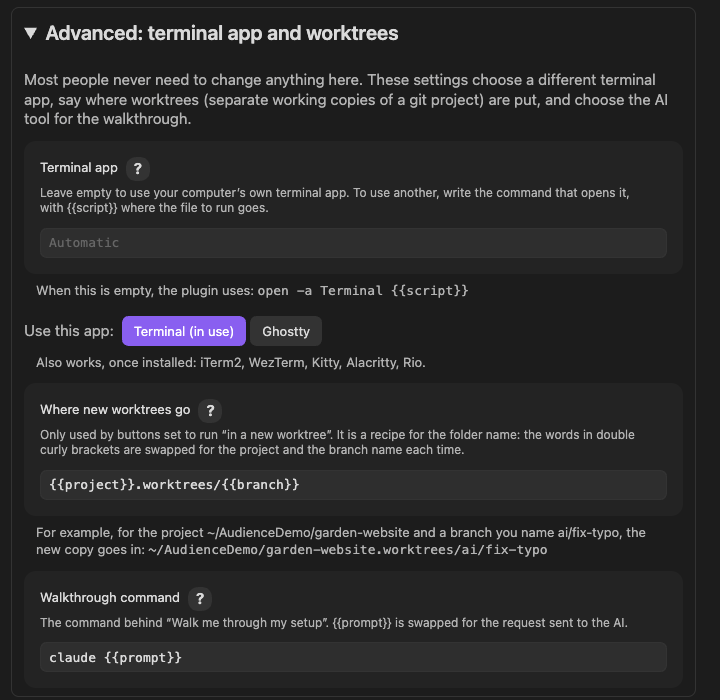
Pick the terminal app with one button. Audience finds the ones installed on your computer: Terminal, iTerm2, Ghostty,
WezTerm, Kitty, Alacritty and Rio on a Mac, the usual ones on Linux, and PowerShell or Windows Terminal on Windows. The AI buttons run whatever you type, so
claude, codex or any other tool works.
Safe by default
needs youAll settings also live in one ordinary note, written so an AI can read it and explain your setup to you. An AI can edit that note too. So any command, terminal or project link changed in the note does not run until you approve it inside Obsidian. Approvals are kept in the plugin’s own data, never in your notes, so an AI cannot approve on your behalf.
- No network calls, no accounts, no API keys, no telemetry.
- It reads your vault, and the project folders you link. It writes only the
audienceproperty and its config note. - To start a terminal it writes a small script to your computer’s temporary folder, which deletes itself when it runs.
Install it
From Obsidian
once listedSettings → Community plugins → Browse → search for “Audience” → Install → Enable.
By hand
Download main.js, manifest.json and styles.css from the
latest release,
put them in <your vault>/.obsidian/plugins/audience/, then switch it on under Community plugins.
The full rules for the audience property are in the standard. Any tool can use it.